Quick answer
Open Notes or Files on your iPhone, choose Scan Documents, hold the camera above the page, review the crop, then save or share the scan as a PDF. Use even light and a flat surface for the clearest result.
Your iPhone can turn paper into a shareable PDF without a separate scanner. The built-in document camera detects edges, combines pages, and lets you adjust the scan before you commit to a saved copy.
Step-by-step
Prepare the page and the lighting
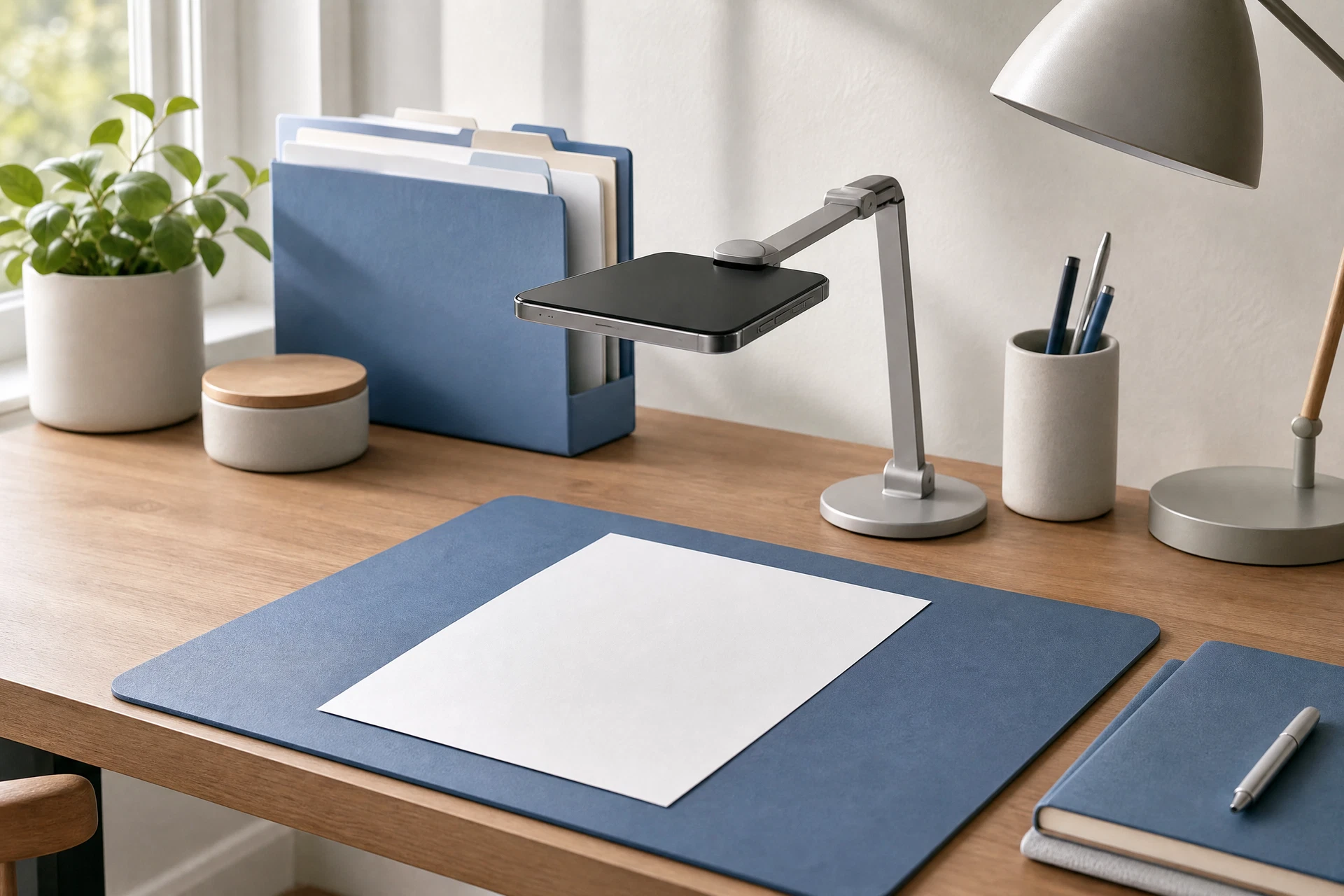
Place the document flat on a contrasting surface. Avoid glare, strong shadows, and folded edges; these make automatic edge detection less reliable.
Open Notes or Files
In Notes, create or open a note and use the camera menu. In Files, use the more-actions menu and choose Scan Documents. Both methods can produce a multi-page PDF.
Frame the document from directly above
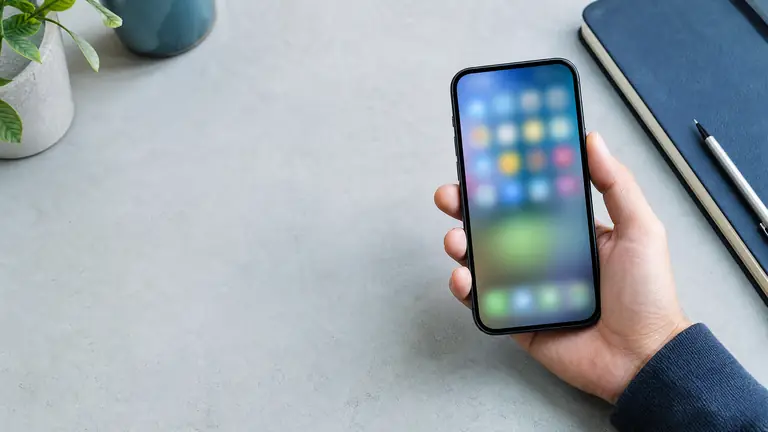
Hold the iPhone steady and parallel to the page. Let the scanner find the edges automatically, or tap the shutter when you need a manual capture.
Check the crop and readability
Review the captured page before moving on. Adjust corners if text is cut off, then choose a color, grayscale, or black-and-white mode that keeps small type readable.
Add every page before saving
Continue scanning until the full document is in the preview. Check the page order and rescan blurred pages while the original is still in front of you.
Save, rename, and share the PDF
Save the scan to the note or folder, then give it a clear name such as 2026-07-insurance-receipt. Use the share menu to send a copy or store it in your preferred location.
Helpful tips
- Use a dark backing sheet behind thin paper so text does not show through.
- Name files with a date and subject immediately, not after they become one of many unnamed scans.
- For sensitive paperwork, scan in a private place and use a protected storage location.
Common mistakes
- Saving a blurry first page and hoping later pages will compensate.
- Leaving a finger or a shadow over a corner before accepting the crop.
- Sending the original photo image when the recipient expects one combined PDF.
Before you continue
- Check where the scan is saved before discarding the paper original.
- Treat scanned identity, tax, health, and account documents as sensitive information when sharing or storing them.
When the first attempt does not work
The scanner does not detect the document edges. What can I change?
Move to more even light, place the page on a contrasting background, and flatten curled corners. You can also use manual capture and adjust the crop handles yourself.
Where did my scanned PDF go after I saved it?
In Notes, it remains attached to the note. In Files, check the folder you selected or use the Files search field with a word from the filename.
Continue with a related guide
Questions answered
Can I scan multiple pages into one PDF on an iPhone?
Yes. Continue scanning pages before tapping Save; the scan preview groups them into a single document that you can reorder or rescan.
Do I need a third-party scanning app?
No. Notes and Files include document-scanning tools. A third-party app may add specialized workflow features, but it is not required for ordinary PDFs.
How can I make an iPhone scan clearer?
Use bright, even light, clean the camera lens, keep the phone parallel to the paper, and review the crop before you save.
This guide is general informational content. It does not replace professional advice for legal, medical, financial, safety, or other consequential decisions.